-
Last updated on June 24, 2026
-
If you are using the Hostinger hosting, please follow the steps below for the Converter for Media plugin to work properly.
-
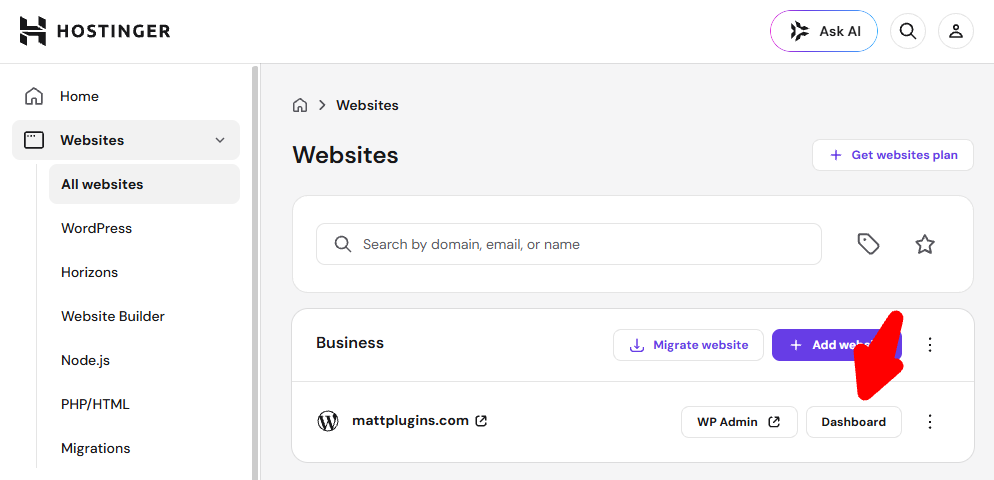
Step 1.
Log in to your Hostinger dashboard and find your website in the list of websites. Click the “Dashboard” button next to your website.
-
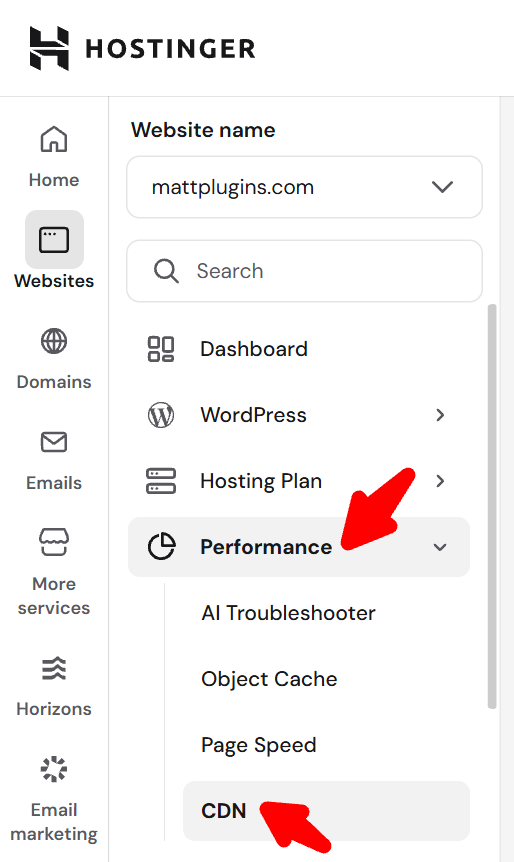
Step 2.
Go to the “Performance -> CDN” menu.
-
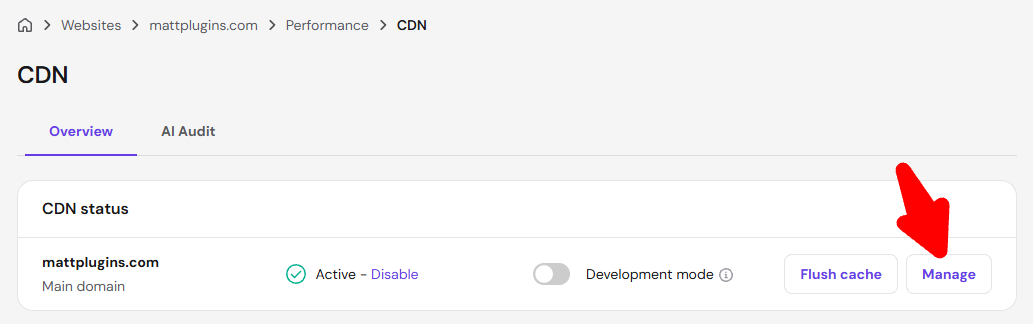
Step 3.
In the “CDN -> Overview” section, click the “Manage” button next to your domain.
-
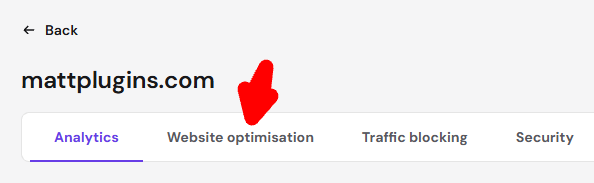
Step 4.
Go to the “Website optimisation” tab.
-
Step 5.
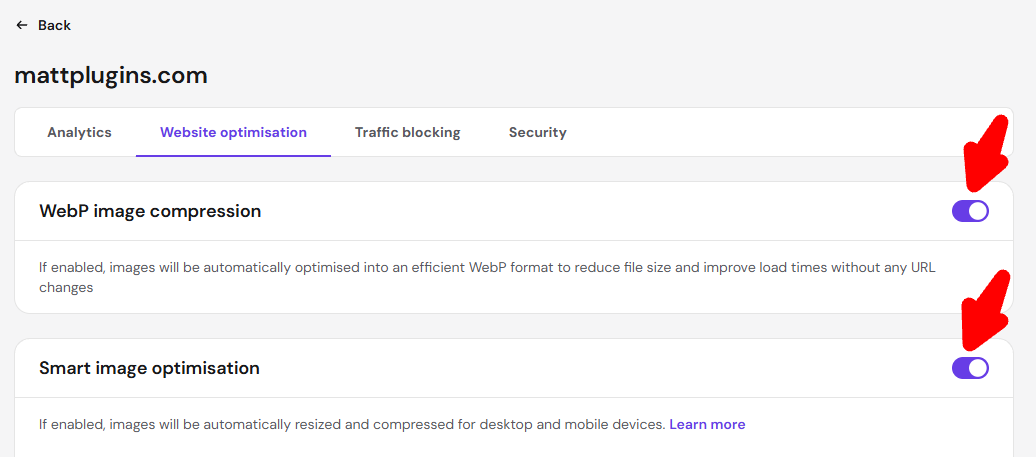
Deactivate the “WebP image compression” and “Smart image optimisation” features.
-
Step 6.
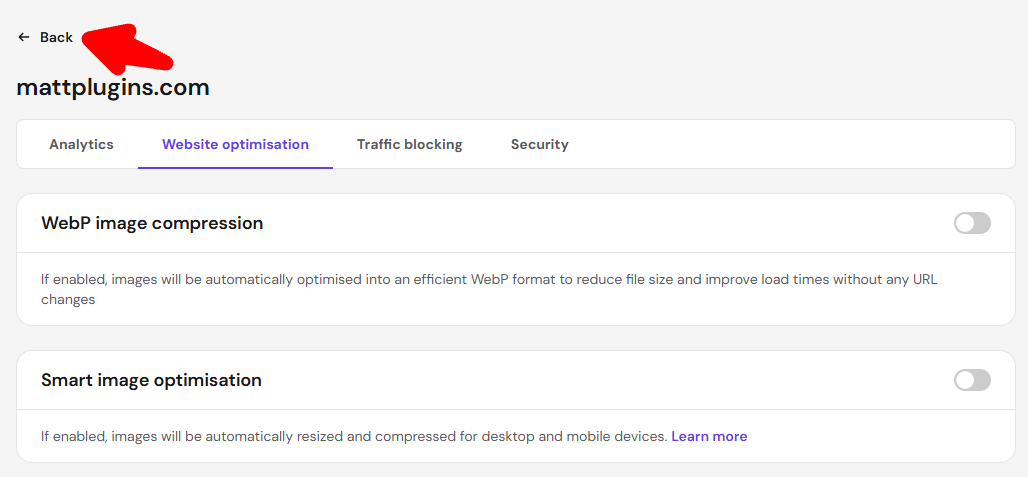
Click the “<- Back” button to return to the “Performance -> CDN” menu.
-
Step 7.
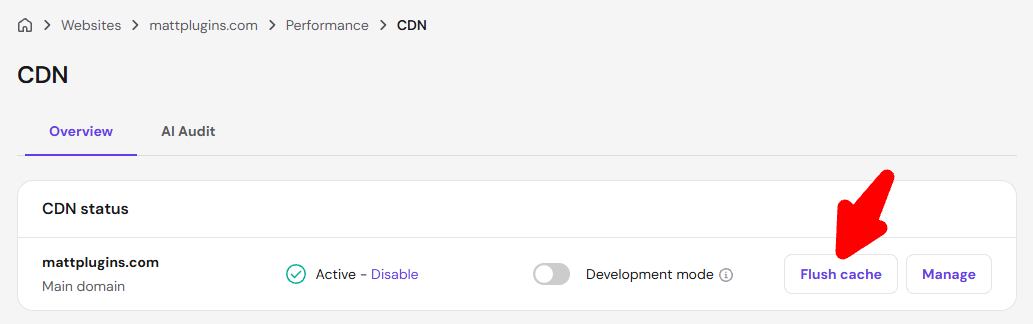
In the “CDN -> Overview” section, click the “Flush cache” button next to your domain.
-
Step 8.
That’s all! Our plugin will work properly.